Connect Google Health to your account
Connect Google Health to your League account so we can automatically complete certain Health Journey activities for you (which means you don’t have to complete them manually).
Note: Right now, you can only connect Google Health to your League account from the League mobile app.
Note: Google Health is the new name for the Fitbit app. If you have a Fitbit device, connect Google Health to keep sharing your data with your League account.
Continue reading to learn how to connect Google Health to your League account.
Connect Google Health to your League account
Follow these steps to connect Google Health to your League account:
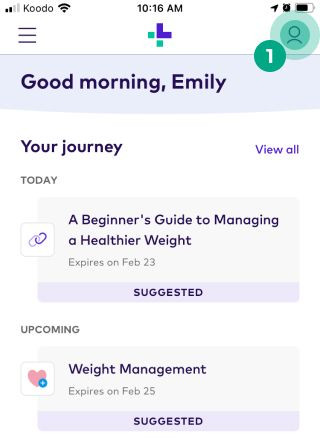
1. Tap the profile icon.
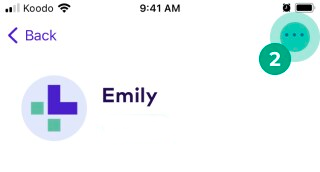
2. Tap the ellipsis (three dots) icon.
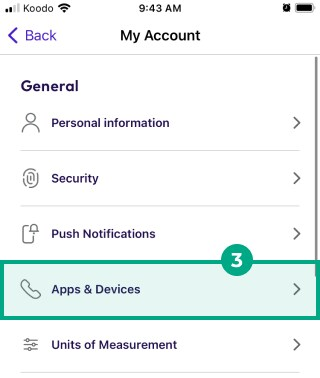
3. Tap “Apps & Devices”.
4. Select Google Health under the “Suggested” heading.
5. Review the information about the data you’ll share, then tap “Continue”.
6. Sign in to your Google account, or choose an account from the list.
7. Choose the data you want to share with your League account, then tap “Continue”.
You can now enroll in connected Health Programs and track your Google Health data in your metrics. You can edit your data sharing permissions anytime.